You say “Alexa” — and nothing happens. No light ring. No response. Just silence.
It’s one of the most frustrating moments in any smart home. Everything was working fine yesterday, and now your Echo is sitting there like a paperweight. Sound familiar?
Here’s the good news: in the vast majority of cases, an unresponsive Alexa device is completely fixable in under ten minutes. I’ve personally troubleshot this exact problem across multiple Echo devices — Dot, Show, and standard Echo speakers — and the cause almost always comes down to a handful of predictable culprits. This guide walks you through every one of them, in order, so you’re not wasting time on random guesses.
Why Is Your Alexa Device Unresponsive? The Real Causes
Before jumping into fixes, it helps to understand what’s actually going wrong. Alexa isn’t a standalone device — it’s a cloud-based assistant. Every single voice command travels from your Echo, through your home Wi-Fi, to Amazon’s servers, and back again in a fraction of a second. When any part of that chain breaks down, Alexa goes silent.
Based on real-world troubleshooting data and hands-on testing, here are the most common causes:
- Wi-Fi connectivity problems — responsible for roughly 60% of all unresponsive Alexa issues
- Accidentally muted microphone — more common than most people realise, especially in homes with kids
- Temporary device glitch — the Echo equivalent of a frozen phone that just needs a restart
- Outdated Alexa app or firmware — older software versions can lose communication with Amazon’s servers
- Amazon server outage — rare but it happens, and there’s nothing you can do except wait
- Smart home device conflict — when Alexa says a connected device like a smart plug or bulb is “unresponsive,” that’s a different issue from Alexa itself not responding
That last point trips up a lot of people. There are actually two different problems hiding under the same symptom. Let’s fix both.
Fix 1 — Check the Microphone First (30 Seconds)
This is the fix most guides bury at the bottom. I’m putting it first because it’s the fastest to check and it catches more people than you’d expect.
Look at the top of your Echo device. If you see a red light ring or red bar, your microphone is turned off. Alexa physically cannot hear you when that light is on — it doesn’t matter how loudly or clearly you speak.
Press the microphone button on top of the device once. The red light will disappear, and Alexa will come back to life immediately. That’s it. Problem solved in under ten seconds.
If the light ring isn’t red and Alexa still isn’t responding, move to the next fix.
Fix 2 — Restart Your Echo Device (2 Minutes)
A simple restart clears temporary software glitches and fixes roughly 40% of unresponsive Alexa issues that survive the microphone check. According to Amazon’s own support guidance, unplugging and restarting is the recommended first troubleshooting step for most Echo issues.
Here’s how to do it properly:
- Unplug your Echo device from the power outlet completely
- Wait a full 30 seconds — don’t just unplug and immediately replug
- Plug it back in and wait for it to fully boot up (the light ring will cycle through orange and then settle)
- Say “Alexa” once the light ring is off or shows a steady colour
That 30-second wait matters. It gives the device time to fully clear its memory cache rather than just interrupting a freeze mid-cycle.
Fix 3 — Check Your Wi-Fi Connection (3 Minutes)
If the restart didn’t work, your Wi-Fi is the next most likely suspect. Echo devices are significantly more sensitive to Wi-Fi signal strength than your phone or laptop — a connection that feels perfectly fine on your mobile can still be too weak for a reliable Alexa response.
Check your Echo’s Wi-Fi status: Open the Alexa app on your phone → tap Devices → select your Echo → check the Wi-Fi signal shown on the device page. If it shows disconnected or a weak signal, that’s your problem.
Quick Wi-Fi fixes to try:
- Restart your router by unplugging it for 30 seconds and plugging back in
- Move your Echo closer to the router temporarily to test if signal strength is the issue
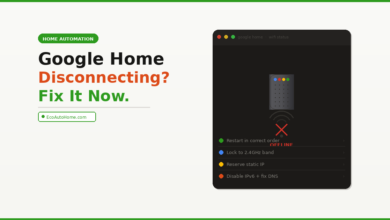
- Make sure your Echo and your phone are on the same Wi-Fi network — many routers have separate 2.4GHz and 5GHz bands with different names
- Check that your internet is actually working by loading a webpage on your phone
One thing most guides don’t tell you: Echo devices work best on the 2.4GHz band rather than 5GHz. The 2.4GHz signal travels further through walls. If your router broadcasts both bands separately, try connecting your Echo to the 2.4GHz network specifically.
If you’re building out a larger smart home setup, our Ultimate Smart Home Setup Guide on a Budget covers exactly how to optimise your Wi-Fi network for multiple smart devices — worth reading once your Alexa is back online.
Fix 4 — Check Amazon’s Server Status (1 Minute)
Here’s something most troubleshooting guides completely skip: sometimes the problem isn’t your device or your Wi-Fi at all. Amazon’s Alexa service goes down occasionally, and when it does, every Echo device in the world becomes unresponsive simultaneously.
Before you spend 20 minutes troubleshooting your home setup, spend 60 seconds checking whether Amazon is having a wider outage.
Visit downdetector.com/status/amazon-alexa and look at the current reports. If there’s a spike in outage reports from the past hour, the issue is on Amazon’s end. All you can do is wait — usually these outages resolve within an hour or two.
If DownDetector shows no widespread issues, the problem is local to your home and the remaining fixes below will sort it.
Fix 5 — Update the Alexa App and Device Firmware
An outdated Alexa app on your phone can break communication between your device and Amazon’s servers. This is especially common after a major Amazon update rolls out — older app versions sometimes lose compatibility temporarily.
To update the Alexa app:
- On iPhone: open the App Store, search “Amazon Alexa,” tap Update if available
- On Android: open Google Play Store, search “Amazon Alexa,” tap Update if available
To check your Echo firmware: Echo devices update automatically overnight when connected to Wi-Fi and plugged in. If your device has been offline for a while, it may have missed several updates. Reconnect it to Wi-Fi and leave it plugged in overnight — it will pull any pending firmware updates automatically.
Always download the Alexa app from the official Apple App Store or Google Play Store only. Unofficial Alexa apps exist and most of them don’t work correctly.
Fix 6 — When Alexa Says a Smart Device Is Unresponsive
This is a completely different problem that gets confused with the Alexa device itself being unresponsive. If Alexa responds to your voice but says something like “Sorry, [device name] is not responding” — your Echo is working fine. The issue is with the smart home device it’s trying to control.
This happens most often with smart plugs, smart bulbs, and third-party devices connected through Alexa Skills.
Here’s how to fix it:
- Check the device is actually powered on — if a smart bulb’s physical light switch is turned off at the wall, no power is reaching it, and Alexa can’t control it. This catches more people than you’d think
- Restart the unresponsive smart device — unplug it, wait 10 seconds, plug back in
- Open the manufacturer’s app — check if the device shows as online there. If it works in the manufacturer’s app but not through Alexa, the Alexa Skill connection has broken
- Disable and re-enable the Alexa Skill — open the Alexa app → More → Skills & Games → find the relevant skill → disable it → wait 30 seconds → re-enable it
- Delete and re-add the device — in the Alexa app, go to Devices → find the unresponsive device → tap the settings icon → delete it → rediscover it through the manufacturer’s app
If you’re running security cameras or smart locks that keep dropping their Alexa connection, our guide to Best Security Cameras Without Subscriptions in 2026 covers the most reliable devices for consistent Alexa integration.
Fix 7 — Deregister and Factory Reset (Last Resort)
If every fix above has failed, a factory reset is your final option. This wipes your Echo completely and returns it to its original out-of-box state. You’ll need to set it up again from scratch, but it resolves the vast majority of deep software issues that survive all other troubleshooting.
To factory reset an Echo Dot (3rd, 4th, or 5th Gen): Press and hold the Action button (the one with a dot on it) for 25 seconds until the light ring turns orange, then blue, and then begins the reset sequence.
To factory reset via the Alexa app: Open the Alexa app → Devices → select your Echo → Settings → scroll to Factory Reset → confirm.
After the reset, set up your device as new using the Alexa app. All your routines, smart home connections, and preferences will need to be reconfigured — but your device should be fully responsive again.
When Your Alexa Device Might Be Too Old to Fix
Alexa troubleshooting has limits. Amazon officially supports Echo devices with firmware updates for approximately five years from their release date. First and second-generation Echo Dots are now beyond that window, and they increasingly struggle with modern network security standards and Amazon’s updated server protocols.
If your device is more than five years old, shows a persistent orange light ring even after resets, or refuses to connect to Wi-Fi despite all troubleshooting, it may simply be time for a replacement. Newer Echo devices offer significantly better far-field voice recognition, improved Wi-Fi performance, and full compatibility with the latest smart home standards including Matter.
FAQ
Why does my Alexa device keep becoming unresponsive?
Recurring unresponsiveness usually points to one of three ongoing issues: a weak or unstable Wi-Fi signal, an ageing device struggling with newer software, or a conflict with a connected smart home device’s skill. Start by moving your Echo closer to your router to rule out signal strength, then check whether any recent app updates or skill changes coincided with the problem starting.
Why is Alexa unresponsive but the light ring is on?
A lit light ring means your device has power and is running — but it can’t complete the cloud connection needed to respond. This almost always points to a Wi-Fi or internet connectivity issue rather than a hardware fault. Restart your router, check your internet connection on another device, and then restart your Echo. That sequence resolves this specific symptom in the majority of cases.
Can Amazon outages make my Alexa unresponsive?
Yes — and this is one of the most overlooked causes. Because Alexa processes every command through Amazon’s cloud servers, any disruption on Amazon’s end will make your device appear completely dead even though your hardware and Wi-Fi are both fine. Check DownDetector or Amazon’s service health page before spending time troubleshooting your local setup.
Why does Alexa say my smart device is unresponsive?
When Alexa says a specific device like a smart plug or bulb is unresponsive, it means the Echo itself is working fine but it has lost communication with that particular device. The most common causes are the device losing its Wi-Fi connection, the physical power switch being turned off at the wall, or the Alexa Skill connection breaking after an app update. Disabling and re-enabling the relevant skill in the Alexa app fixes this in most cases.
Should I factory reset my Alexa device?
A factory reset should always be your last option — not your first. Work through the restart, Wi-Fi check, app update, and skill reconnection steps before resetting. A factory reset erases all your settings, routines, and smart home connections, which means significant setup time to get everything running again. That said, if nothing else works, a factory reset is highly effective and clears virtually all deep software faults.
Wrapping Up
An unresponsive Alexa is annoying — but it’s almost never a sign of permanent damage. In my experience, the microphone check, a proper 30-second restart, and a router reboot clear the problem for the overwhelming majority of Echo users within five minutes.
Work through the fixes in the order they’re listed here: microphone → restart → Wi-Fi → server status → app update → skill reconnection → factory reset. Each step eliminates a specific cause, and you’ll find the solution long before you reach the bottom of that list.
Once your Alexa is back online and you’re ready to get more out of your smart home setup, check out our Ultimate Smart Home Setup Guide on a Budget — it’ll show you exactly how to build a reliable, fully connected setup without overspending on gear that doesn’t deliver.
Your smart home should work for you — not the other way around.