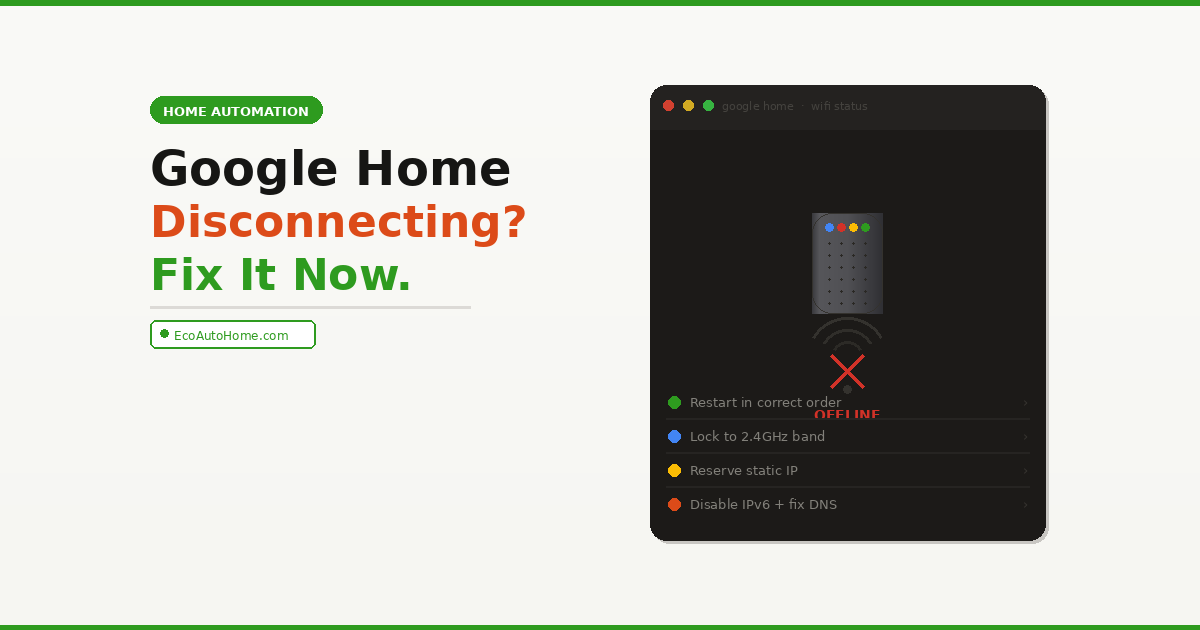
You walk into the kitchen and say “Hey Google” — nothing. You open the Google Home app and see that dreaded grey icon. Offline. Again.
You unplug it, plug it back in, wait for the reboot, and it reconnects. Then two hours later — or maybe the next morning — the exact same thing happens all over again.
If your Google Home keeps disconnecting from Wi-Fi on repeat, you’re dealing with something more specific than a random glitch. In my experience troubleshooting smart home setups, recurring disconnections almost always come down to one of five fixable causes — and the right fix depends entirely on which one is actually happening in your home. This guide works through every real cause in order, so you stop rebooting and start actually solving it.
Why Google Home Keeps Disconnecting — The Real Causes
Before jumping into fixes, let’s understand what’s actually happening. Google Home devices — whether you have a Nest Mini, Nest Audio, Nest Hub, or an original Google Home speaker — don’t just randomly drop Wi-Fi for no reason. Every disconnection has a cause. The frustrating part is that the Google Home app gives you almost no information about why it went offline.
Here are the most common causes behind google home keeps disconnecting issues, ranked by how frequently they appear in real homes:
- Wi-Fi signal instability — the device is too far from the router or sitting in a dead zone
- IP address conflict — your router assigns the same address to multiple devices, causing one to get kicked off
- Wrong Wi-Fi band — Google Home devices work best on 2.4GHz but may be connecting to 5GHz and struggling to maintain range
- Router firmware or settings issue — AP isolation, IPv6 conflicts, or outdated firmware blocking device communication
- Wi-Fi password or network change — a recent router change, password update, or ISP modem swap that the device never fully resolved
- App or firmware bug — a Google Home or router firmware update that introduced a connectivity regression
Most of these are fixable in under 10 minutes. Let’s work through them.
Fix 1 — Restart Everything Properly (The Right Way)
Before anything else — and I mean before anything else — do a proper full restart of your entire network stack. Not just the Google Home device. Not just the router. Everything, in the correct order.
Most people restart things in the wrong sequence, which is why the “I already tried restarting it” fix often doesn’t work.
Here’s the correct restart sequence:
- Unplug your Google Home device from power completely
- Unplug your Wi-Fi router from power
- Unplug your modem from power (the box from your ISP — separate from the router if you have both)
- Wait a full 60 seconds — not 10 seconds, not 30. A full minute lets everything clear its memory completely
- Plug in the modem first — wait for all its lights to stabilise (usually 60-90 seconds)
- Plug in the router — wait for it to fully boot (another 60-90 seconds)
- Plug in your Google Home device last
This sequence ensures your Google Home gets a fresh IP address from a fully initialised router rather than inheriting a stale or conflicted address from a half-rebooted network. If you’ve been restarting just the Google Home device on its own, this is likely why it kept coming back.
If the disconnection returns within a day after this full restart, the problem is deeper than a temporary glitch — keep going through the fixes below.
Fix 2 — Lock Google Home to the 2.4GHz Band
This is the fix that solves recurring disconnections for the largest number of users, and it’s the one most guides either skip entirely or bury at the bottom.
Here’s what’s happening: modern routers broadcast two separate Wi-Fi networks — 2.4GHz and 5GHz — sometimes under the same network name (SSID). The 5GHz band is faster but has significantly shorter range and struggles to penetrate walls and floors. The 2.4GHz band is slower but travels much further and maintains a more stable connection across obstacles.
Google Home devices are designed primarily for 2.4GHz. When your router is dual-band, connecting your smart device to the correct frequency band matters. The 2.4GHz provides a relatively lower internet speed but has a greater range, while the 5GHz has higher speed but lower range. When a Google Home device latches onto the 5GHz band — which routers often prefer automatically — it can maintain a connection from close range but drop repeatedly when signal fluctuates slightly.
How to fix this:
If your router broadcasts separate network names for each band (e.g., “HomeNetwork” and “HomeNetwork_5G”), this is easy — simply connect your Google Home to the 2.4GHz network specifically.
If your router uses a single combined network name (called “band steering”), you need to log into your router’s admin settings and either:
- Disable band steering so devices connect to whichever band you choose
- Create a separate 2.4GHz-only SSID specifically for smart home devices
- Or in your router’s device list, manually pin your Google Home’s MAC address to the 2.4GHz band
To reconnect to the correct band after changing this:
- Open the Google Home app
- Tap your device tile → tap the gear icon → Device information → Wi-Fi → Forget
- Back on the main screen, tap “+” → Set up device → New device
- Follow the setup wizard and connect to the 2.4GHz network specifically
If the Wi-Fi name or password changed at any point, or the speaker latched onto the wrong band or node, it may never fully reconnect until you set it up again completely. This full reconnection step is important — don’t skip it.
Fix 3 — Assign a Static IP Address to Your Google Home
This is the fix that most smart home guides completely miss — and it’s the permanent solution for disconnections caused by IP address conflicts.
Here’s what happens: by default, your router uses DHCP to automatically assign IP addresses to every device on your network. Every time a device reconnects, it may get a different IP address. On a busy home network with many devices, two devices can occasionally get assigned the same IP address — causing one of them to get knocked offline. Google Home devices are particularly vulnerable to this because they reconnect frequently.
The fix is to give your Google Home a reserved IP address — also called a static DHCP lease — so your router always assigns it the exact same address, eliminating any conflict.
How to do this:
- Open your router’s admin page — typically accessed by typing
192.168.1.1or192.168.0.1into a browser - Find your Google Home device in the connected devices or DHCP client list
- Note its MAC address (a unique identifier shown as six pairs of characters, e.g., A4:77:33:XX:XX:XX)
- Find the DHCP reservation or static IP section in your router settings
- Create a new reservation using that MAC address and assign a fixed IP — something like
192.168.1.150that’s outside your router’s automatic assignment range - Save and restart the router
After this, your Google Home will always get the same IP address every time it connects, eliminating address conflicts permanently. This single fix resolves recurring disconnections on busy networks with many smart devices more reliably than any other step.
Fix 4 — Turn Off IPv6 and Change Your DNS Server
This is a less obvious fix that solves a surprising number of persistent Google Home disconnection issues — particularly on mesh Wi-Fi systems and newer routers.
To fix a Google Home device that shows an offline status in the Google Home app while still connected to the internet, open the Google Home app, tap Home → Wi-Fi → Network Settings → Advanced networking, and turn off IPv6.
IPv6 is the newer internet addressing protocol, but many Google Home devices and older smart home equipment have imperfect IPv6 implementations that cause intermittent connectivity failures. Disabling it forces everything to use the rock-solid IPv4 standard that smart home devices are built to handle.
Additionally, change your DNS servers:
Change your DNS server to 8.8.8.8 on the primary and 8.8.4.4 on the secondary server, then unplug power from your Google Home devices for 2 minutes.
These are Google’s own public DNS servers — fast, reliable, and specifically optimised for Google devices. Many ISP-provided DNS servers are slower and occasionally fail to resolve Google’s device communication addresses correctly, which can cause Google Home devices to appear offline even when they’re physically connected to Wi-Fi.
How to change DNS on your router:
- Log into your router admin page
- Find DNS settings (usually under WAN or Internet settings)
- Set Primary DNS to
8.8.8.8and Secondary DNS to8.8.4.4 - Save, restart your router, then restart your Google Home
Fix 5 — Check Router Settings That Block Google Home
Several specific router settings silently kill Google Home’s ability to maintain a stable connection. These are set-and-forget settings that many routers enable by default — and most users never know they’re there.
AP Isolation (Access Point Isolation) This setting prevents devices on the same Wi-Fi network from communicating directly with each other — it’s a security feature designed for public hotspots. The problem is that Google Home devices need to communicate with your phone and other devices on the same network to function. If AP isolation is enabled on your home router, your Google Home will appear online but constantly fail to communicate. Turn it off in your router’s wireless settings.
UPnP and Multicast Enable Universal Plug and Play (UPnP) and multicast in your router settings. These steps usually stop a Google Home speaker from disconnecting daily. Google Home uses multicast to broadcast its presence on your network — without it, the device can appear to drop connection even when it’s physically connected to Wi-Fi.
WPA3 Security Conflicts Switching Wi-Fi security from WPA2/WPA3 mixed mode to WPA2 only can resolve Google Home disconnection issues. WPA3 is a newer security standard that some older Google Home and Nest devices struggle with in mixed-mode implementations. If your router is set to WPA2/WPA3 combined, try switching to WPA2 only and see if the disconnections stop.
Router Firmware An outdated router firmware is a common hidden cause of smart home connectivity issues. Log into your router admin page and check whether a firmware update is available. Router manufacturers regularly push updates that fix known compatibility issues with smart home devices — including Google Home.
Fix 6 — Move Your Google Home Closer to the Router
Simple but often overlooked — particularly when the device has been working fine for months and then starts disconnecting. What changed isn’t always the device itself. It could be a new appliance creating interference, furniture rearrangement blocking signal, or a neighbour’s new router competing on the same Wi-Fi channel.
Distance or obstructions between your Wi-Fi router and Google Home may cause internet connectivity issues. You can also try moving electronic gadgets in your home as they may interfere with the Wi-Fi signal. Microwave ovens, baby monitors, and cordless phones all operate on the 2.4GHz frequency and can interfere with your Google Home’s connection.
Specific things to move your Google Home away from:
- Microwave ovens — they emit strong 2.4GHz interference when running
- Baby monitors and cordless phones
- Other routers or Wi-Fi extenders placed too close
- Large metal objects — refrigerators, filing cabinets, metal shelving
- Thick concrete or brick walls between the device and router
If you’re on a mesh Wi-Fi system, run the built-in mesh test in your router’s app to check signal strength at your Google Home’s location. In a mesh system, you want a “good” or “excellent” signal rating, not “weak.” If the test shows poor signal, move the speaker a metre or two closer to a mesh node, or move the node more centrally. Avoid tucking the speaker behind a TV, inside a cabinet, or directly next to the router itself.
Fix 7 — Reconnect Your Google Home from Scratch
If you’ve worked through every fix above and the device still keeps disconnecting, the cleanest permanent solution is to wipe the device’s network memory and reconnect it completely from scratch. This resolves stale network configurations, incorrect band assignments, and authentication errors that survive through normal restarts.
Factory reset your Google Home device:
- Nest Mini (2nd gen): Hold the centre of the device for 5 seconds until the lights flash orange, then release
- Nest Audio: Hold the volume buttons on the back for 5 seconds until the light pulses orange
- Nest Hub (2nd gen): Hold both volume buttons for 10 seconds until the screen shows a factory reset prompt
- Original Google Home: Hold the mute button on the back for 15 seconds
After the reset, set up the device fresh through the Google Home app. Connect it specifically to the 2.4GHz network, allow any firmware updates to install completely before testing, and don’t add it to device groups until you’ve confirmed it maintains a stable connection for at least 24 hours.
Building a reliable smart home network matters beyond just fixing this one device. If you’re running multiple smart home devices and experiencing repeated connectivity issues across different products, our Ultimate Smart Home Setup Guide on a Budget covers exactly how to structure your home network so every smart device stays online reliably.
And if your Google Home disconnection problems are happening specifically when it’s trying to control other devices — like a Nest thermostat showing errors — check our guide on Nest Thermostat “Delayed” Message which covers power and connectivity issues specific to Nest devices.
FAQ
Why does my Google Home keep disconnecting from Wi-Fi every night?
Nightly disconnections specifically suggest your router is dropping and reassigning IP addresses overnight — often because routers renew DHCP leases on a 24-hour cycle. The cleanest fix is to assign your Google Home a reserved static IP address through your router’s DHCP reservation settings. This gives it a permanent address that never changes, eliminating the nightly drop. Also check whether your router has a scheduled reboot timer in its settings that you may have forgotten about.
Why does my Google Home show offline in the app but still plays music?
This is a specific symptom of a communication failure between the Google Home app on your phone and the device — rather than a true Wi-Fi disconnection. It almost always means AP isolation is enabled on your router, or that your phone and Google Home are on different network segments. Disable AP isolation in your router’s wireless settings and make sure your phone is connected to the same Wi-Fi network (not a guest network) as your Google Home.
Will a Wi-Fi extender fix Google Home disconnecting?
Sometimes — but often it makes things worse. Wi-Fi extenders create a separate network segment that Google Home devices handle poorly. A better solution is a proper mesh Wi-Fi system (like Google Nest WiFi, Eero, or TP-Link Deco) which creates a single seamless network that smart home devices roam across cleanly. If you do use an extender, make sure it’s set to use the same network name and password as your main router so devices don’t get confused between networks.
Why does Google Home disconnect after a router change or password update?
When your Wi-Fi network name or password changes, your Google Home still tries to connect using the old credentials — and it will fail silently rather than giving you a useful error message. The fix is to go into the Google Home app, find the device, go to Settings → Device information → Wi-Fi → Forget, and then set the device up again using your new network details. Your new network should match your old network’s name and password in order for your devices to continue connecting automatically — if you changed these, you need to reconnect each device individually.
How do I stop Google Home from disconnecting permanently?
The most reliable long-term fix combines three things: assign a reserved IP address through your router’s DHCP settings, connect the device to your 2.4GHz band specifically, and disable AP isolation in your router’s wireless settings. These three changes together eliminate the most common causes of recurring disconnections. If the problem persists after all three, a full factory reset followed by a fresh setup is the definitive solution.
Getting Your Google Home to Stay Online
A Google Home that keeps disconnecting isn’t broken — it’s misconfigured, or it’s fighting against router settings that were never designed with smart home devices in mind.
Work through the fixes in order: proper full restart → lock to 2.4GHz → reserve a static IP → disable IPv6 and update DNS → check router settings (AP isolation, UPnP, WPA2) → improve signal placement → factory reset if needed. Most people find the fix somewhere between steps 2 and 4 without ever needing to reach a factory reset.
Once your Google Home is stable and reliably online, it becomes the foundation for everything else in your smart home — routines, voice control, connected devices, and automation all depend on that connection staying solid. A few minutes of router configuration today buys you months of frustration-free smart home living.